
Veo 3.1 AI Video Generator
Sign up & get 20 free credits
Start creating videos for free
Start Frame
JPG, PNG, WebP · Max 10MB
End Frame
JPG, PNG, WebP · Max 10MB
Veo 3.1 Video Examples
Explore an image-to-video example and a text-to-video example shown as 8-second, 720p results.
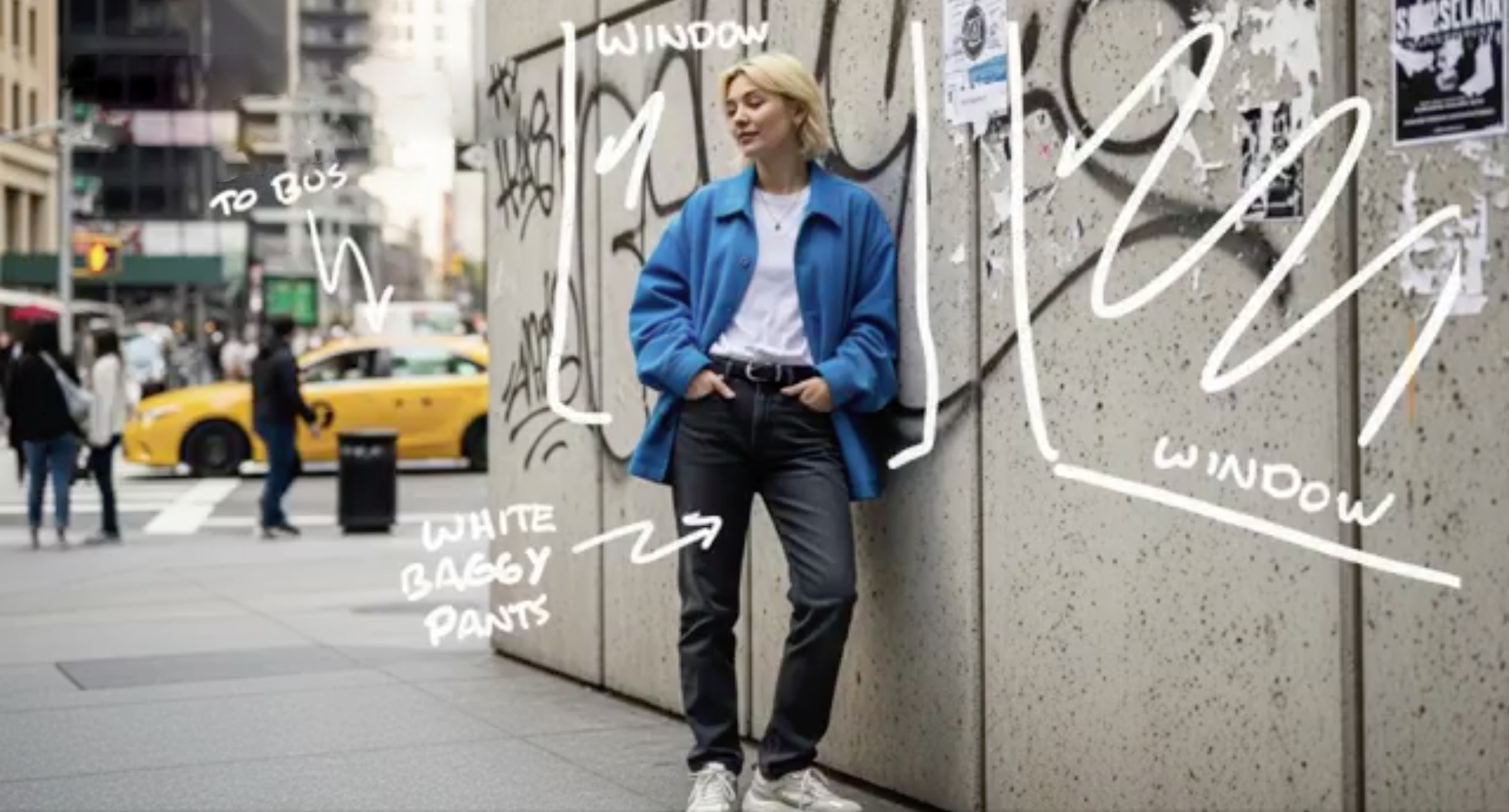
Veo 3.1 Image to Video
Use a source image to establish the composition, then prompt the movement, camera behavior, and audio. For more control, add an ending frame or switch to the reference-image workflow.
Veo 3.1 Text to Video
Direct the visual and audio result with a shot-based prompt. This example specifies camera speed, reflective materials, daylight, a close-up transition, and ambient sci-fi sound.
"Ultra-fast tracking shot through a sprawling futuristic cityscape where towering buildings are made of reflective organic chrome, glistening under a bright midday sun. Rainbow light flares and crystalline bokeh scatter across the frame as the camera dynamically weaves between structures. The sequence transitions into a close-up of a translucent chrome hive, where a detailed robotic worker bee moves with mechanical precision. High-detail cinematic lighting, shallow depth of field, and a low ambient sci-fi hum."
Veo 3.1 Features for More Controlled Video Generation
Move beyond a text-only workflow with visual inputs that help define how a shot starts, ends, and stays on brief.
First and Last Frame Control
Upload a starting frame and an optional ending frame to guide the clip's visual journey. Veo 3.1 generates the motion between them, making this mode useful for planned reveals, transitions, and before-and-after sequences.
Enhanced Ingredients to Video
Provide up to three images of a character, object, scene, or style. Veo 3.1 combines these visual ingredients while preserving identity and background details more consistently, even when the prompt is concise.
Native, Synchronized Audio
Generate dialogue, ambience, and action-matched sound with the video. Describe important audio cues directly in the prompt—for example, a line of dialogue, room tone, footsteps, or a specific environmental sound.
Video Extension with Visual Continuity
Continue a previously generated Veo clip with a new prompt. Veo 3.1 carries the scene forward while preserving visual and narrative context, making it possible to develop a longer sequence beyond one generation.
Native 9:16, 1080p, and 4K
Create full-frame portrait video for mobile platforms without cropping, or choose landscape output. Veo 3.1 supports 720p plus higher-fidelity 1080p and 4K options for compatible 8-second generations.
How to Use the Veo 3.1 AI Video Generator
Choose the input method that matches the amount of visual control you need, then describe the motion and audio clearly.
1. Choose a Generation Workflow
Start from text, animate an image, define first and last frames, add up to three reference images, or extend a video previously generated with Veo. Choose the workflow that matches the visual control you need.
2. Write a Shot-Based Prompt
Describe the subject, action, setting, camera movement, lighting, style, and sound. When using images, explain what should move and what should remain consistent instead of repeating only what is already visible.
3. Set Duration, Format, and Resolution
Choose a supported duration of 4, 6, or 8 seconds, select 16:9 or native 9:16, and generate at 720p, 1080p, or 4K where compatible. Review the result before extending, editing, or publishing.
Veo 3.1 AI Video Generator FAQ
Answers about Veo 3.1 reference images, first and last frames, native audio, resolution, video length, pricing, and prompts.
What is new in Veo 3.1 compared with Veo 3?
Veo 3.1 improves prompt adherence, realism, and audio-video alignment while adding more creative control. Its latest official capabilities include enhanced Ingredients to Video, first-and-last-frame interpolation, native 9:16 output, video extension, and compatible 1080p and 4K generation.
What is Veo 3.1 Lite?
Veo 3.1 Lite is a newer, lighter model in the Veo 3 series. Google describes it as a high-resolution text-to-video and image-to-video model with native audio. It supports 4, 6, or 8-second output at 720p, plus compatible 8-second 1080p generation, but it does not include reference-image or video-extension input.
How do first and last frames work in Veo 3.1?
Upload a starting image and, if needed, an ending image. Veo 3.1 generates the motion between those visual anchors. Use images with compatible composition and describe the intended transition; the inputs guide the result but do not guarantee an exact frame-for-frame path.
What are multi-image references and when should I use them?
Reference images give Veo 3.1 visual context for a person, object, setting, or style. Ingredients to Video accepts up to three images and has been enhanced to preserve character identity and background details more consistently. Reference-image generations use an 8-second duration.
Does Veo 3.1 generate audio with the video?
Yes. Veo 3.1 natively generates dialogue, ambience, and sound effects with the visuals. Describe important sounds and spoken lines in the prompt. Because generative audio can vary, review timing, pronunciation, and content before publishing.
Can Veo 3.1 extend a video beyond one clip?
Yes. Veo 3.1 can extend a video previously generated with Veo by continuing the action from a new prompt. Extension preserves the existing video's format and runs at 720p, so plan the original shot and each continuation as a connected sequence.
What makes character consistency important?
Consistent characters help viewers follow a story and help branded assets remain recognizable. Provide clear reference images with compatible angles and lighting, then describe the features that must remain stable. Reference guidance improves consistency but does not lock every detail or guarantee identical results across separate generations.
Which generation modes does Veo 3.1 support?
Veo 3.1 supports text-to-video, image-to-video, first-and-last-frame interpolation, generation from up to three reference images, and extension of a previously generated Veo video. Available options can differ across Gemini, Flow, the Gemini API, and Vertex AI.
Can I use a Veo 3.1 video commercially?
Commercial use depends on the terms that apply to your account and on the rights in uploaded images, brands, depicted people, and other source material. Review the current platform terms before using a result in advertising or client work; AI generation does not grant rights to third-party content.
How much does generation cost?
Pricing varies by access point, model variant, resolution, and product. Check the current rates for the Gemini API, Vertex AI, Gemini, or Flow before generating, especially for 1080p and 4K workflows.
How do I get better results from my prompts?
Describe one focused shot: subject, action, setting, framing, camera movement, lighting, style, and audio. With image inputs, say what should move and what must stay stable. Put dialogue in quotation marks and avoid packing several unrelated scenes into one 8-second clip.
Is this suitable for beginners or just professionals?
Both. Beginners can start with a simple text or image prompt, while experienced creators can add first and last frames, reference images, seeds, and explicit camera or audio direction. Start with one clear action, then add constraints only when they serve the shot.
Why did my generation fail?
Failures can come from Google's safety filters, unsupported input or parameter combinations, regional person-generation restrictions, temporary service errors, or source media that does not meet requirements. Check the returned error and current model specifications, then revise the prompt, references, or settings.
What's the actual generation time?
Google does not promise one fixed generation time. Processing varies by model variant, input mode, resolution, duration, product, and current demand. Higher-resolution output and complex reference workflows can take longer than a basic generation.
How do I create longer videos for YouTube or presentations?
Use video extension to continue a Veo-generated clip, or plan the story as multiple shots and assemble them in an editor. Reuse the same visual ingredients, subject description, wardrobe, lighting, palette, and camera language to improve continuity.